![image.webp]](https://support.salutesafety.com/hs-fs/hubfs/image.webp?height=40&name=image.webp)
To Access Labels:
- Log into the Salute Portal.
- From the Salute Portal landing page, the Management set of modules
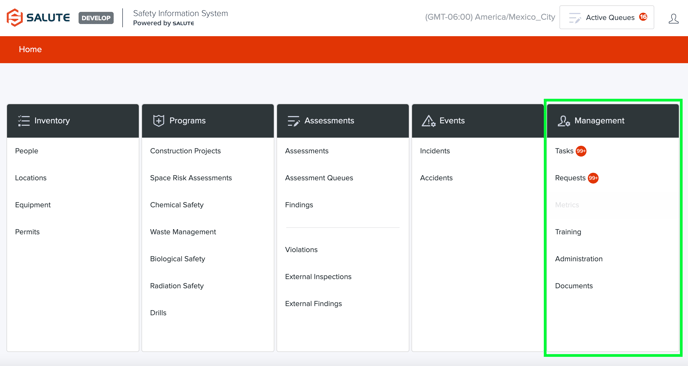
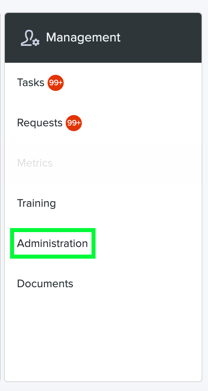
- From the Management modules, locate and select "Administration"
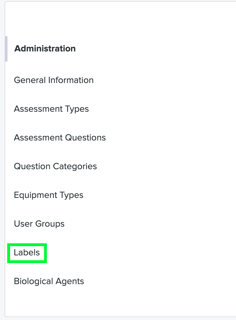
- From the list of modules that generate, locate and select "Labels"
Viewing and Navigating Current Labels
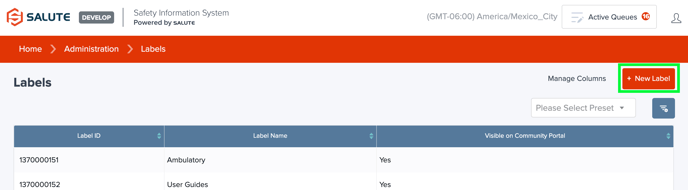
The Labels landing page will be divided into three columns: Label ID, Label Name, and Visible on Community Portal. 
All column headers are equipped as dynamic search fields. A User can search for a label based off of the attributes associated with it. A User can also filter the data alphanumerically.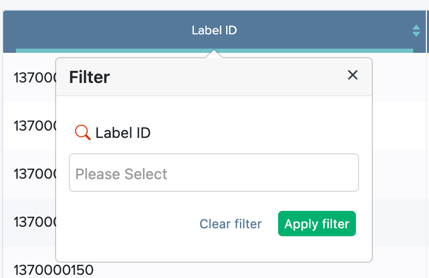
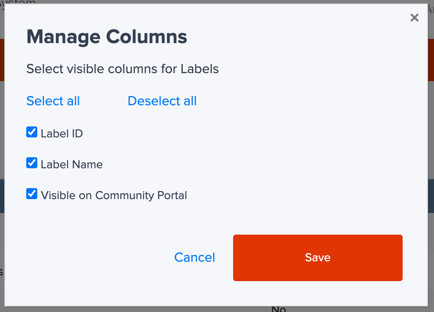
A User can locate and select "Manage Columns" in the top right corner to pick and choose which columns they would like to view on the landing page. 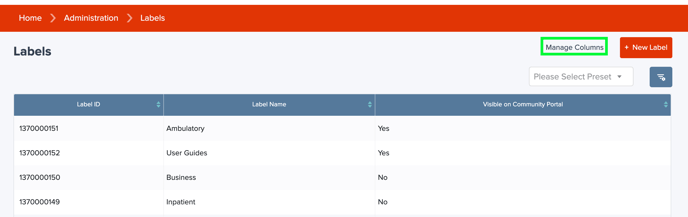
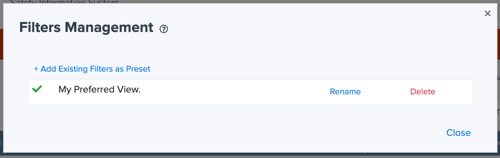
Upon filtering, a User can locate the cog wheel on the top right side of the page and choose to save the filtered view as a pre-set. 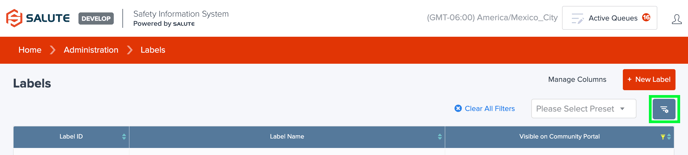
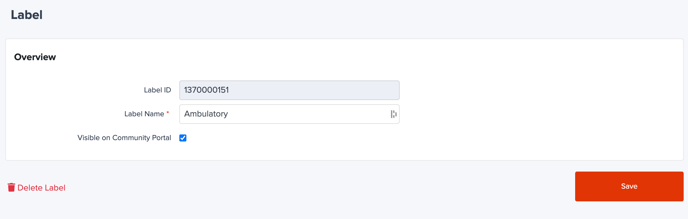
To view any of the details on a desired label, the User must click into a label. Here, a User can do the following to a Label:
-
- Edit the Label Name
- Toggle on or off if the User would like the Label to be visible on the Community Portal
- Delete a Label
- Note: a Label can only be deleted if there are currently no existing records associated with a specific Label
 Creating New Labels
- On the landing page, locate and select "+ New Label" in the top right corner
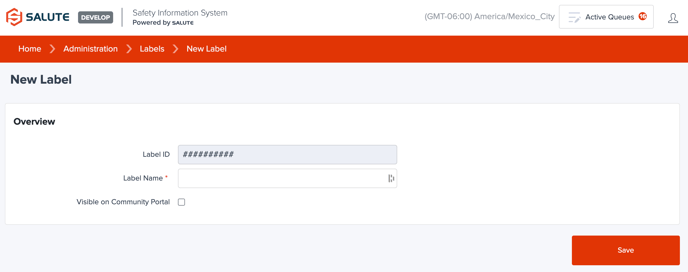
- Create a Label Name
- Check off if the Label should be visible on the Community Portal
- Select Save